✨ Features
📅 Customizable Schedule View
See your workorder calendar for the next 21, 30, or 90 days. Toggle between views to match your scheduling horizon. Search the calendar to find specific workorders by customer name, order number, or notes. Choose the range that works best for your shop's workflow.
🚦 Traffic Light Workload Badges
Color-coded daily counters (🟢 green, 🟡 yellow, 🔴 red) show workload intensity at a glance. Set your own thresholds for when colors trigger based on your shop's capacity.
💳 Store Credit Alerts
Automatic banner notification displays available customer account balances. Never miss a payment opportunity—see store credit instantly when viewing a workorder.
🎨 Status Colors & Line Totals
Workorder cards display custom status colors synced directly from Lightspeed. Expandable views show line item counts and dollar amounts without extra clicks.
⚡ Auto-Apply Customer Deposits NEW v1.5
Deposits are automatically applied at checkout, eliminating a manual step. Streamline your payment process while keeping full control—toggle this feature on/off anytime in Settings.
🔐 Secure OAuth
Server-side credential management keeps your API secrets protected from browser exposure. Your Lightspeed credentials are never stored locally.
⚙️ Settings & Configuration
The extension provides several settings to tailor the experience to your shop. Access all settings from the extension popup.
Calendar View Range
Choose between 21, 30, or 90-day schedules to match your planning horizon. Change between views anytime to see different time windows.
Traffic Light Thresholds
Configure when yellow and red badges appear based on daily workorder count. Set thresholds that match your shop's normal, busy, and max capacity.
Hidden Statuses
Exclude specific workorder statuses from the calendar (e.g., "Closed", "Archived", "Cancelled"). Keep your view focused on actionable orders.
Deposit Workflow
Enable or disable automatic deposit application at checkout. Perfect if you prefer manual control or if the feature needs to be temporarily disabled. No need to uninstall—just toggle it off and back on anytime.
Status Sync
Refresh the status list after adding new workorder statuses in Lightspeed. Keeps the calendar in sync with your latest status definitions.
Custom API Credentials
Advanced option for shops using their own registered Lightspeed API app. Leave blank to use default shared credentials.

Settings panel accessible from the extension icon in your browser toolbar
📦 Installation
Chrome
Install from the Chrome Web Store for automatic updates and easy installation.
Firefox
Install from Firefox Add-ons for automatic updates and easy installation.
Manual Installation (Developer)
If you want to load the extension manually for development:
Chrome (Developer Mode)
- Go to
chrome://extensions - Enable Developer mode (top-right toggle)
- Click Load unpacked
- Select the
lightspeed-schedulefolder
Firefox (Temporary Add-on)
- Go to
about:debugging#/runtime/this-firefox - Click Load Temporary Add-on
- Select the
manifest.jsonfile inside the extension folder
🚀 Getting Started
After loading the extension, a setup popup will open automatically (or click the extension icon in your toolbar).
Step 1: Account ID
In Lightspeed, click Help in the bottom-left corner. Your Account ID is shown in the panel that opens. Copy and paste it into the setup form.
Step 2: Connect to Lightspeed
Click "Authorize with Lightspeed" to complete OAuth setup. You'll authorize the extension to read workorder data. This is a one-time step.
Step 3: Start Using
Open any workorder in Lightspeed R-Series and click the 📅 Schedule button (bottom-right corner). The panel slides in showing all workorders due in the next 21-90 days, grouped by date.
OAuth Authorization
Lightspeed uses OAuth 2.0. The extension will guide you through a secure authorization flow that requires your Lightspeed credentials only once. After that, token refresh is handled automatically in the background.
Usage
- Open any workorder in Lightspeed R-Series
- Click the 📅 Schedule button (bottom-right corner)
- The panel slides in showing workorders due in your selected date range
- Click anywhere outside the panel or the ✕ button to close it
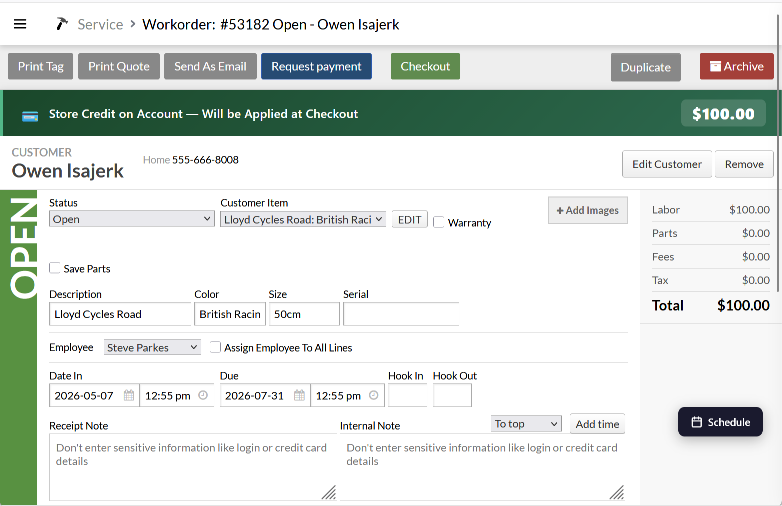
Store credit alert banner displays available customer account balance during workorder checkout
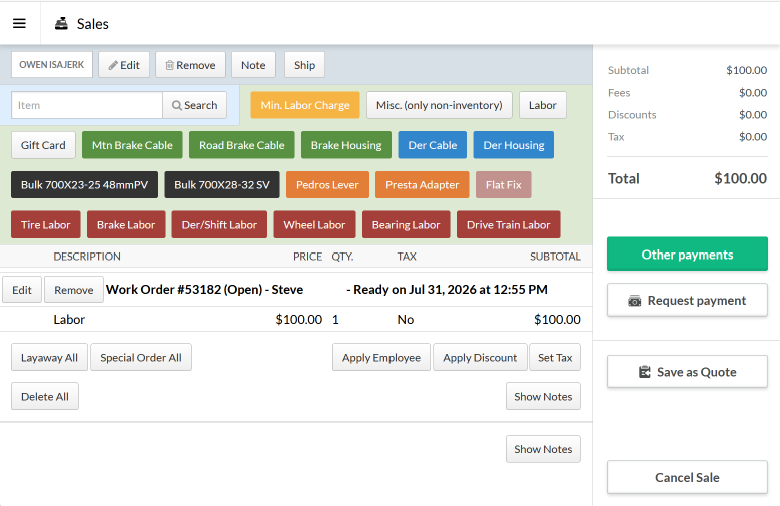
Card button disabled, Other Payments defaulted to apply deposit at next screen
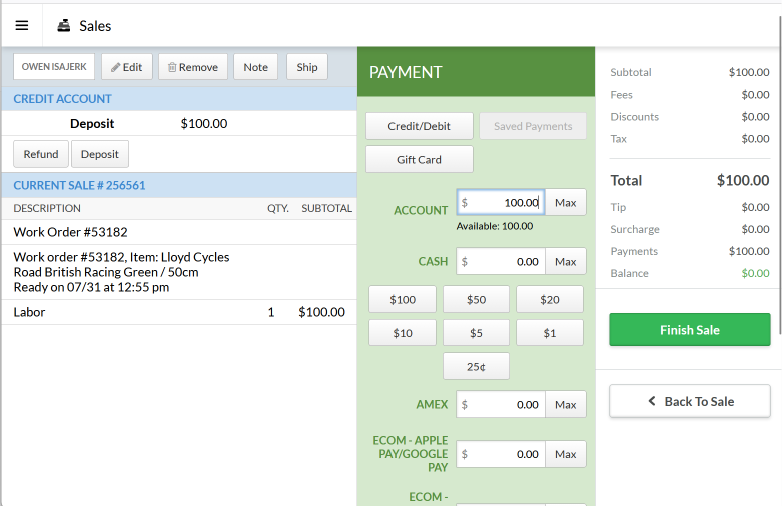
Deposit applied and alternative payment methods activated to cover remaining balance
📋 Release Notes
New Features
- Auto-Apply Customer Deposits — Deposits now automatically apply at checkout. Disable in Settings if you prefer manual control.
- Deposit Workflow Toggle — Enable/disable automatic deposit application without uninstalling the extension
Technical Improvements
- Improved deposit detection and form handling
- Better handling of asynchronous Lightspeed form rendering
- Enhanced compatibility with React-based checkout interface
What's Different
The payment checkout flow has been significantly improved:
- Card button is now disabled — Previously, the Card payment button would process payments without applying customer deposits. This button now hides automatically to prevent accidentally bypassing the deposit.
- Automatic deposit application — The extension automatically applies available customer deposits and activates alternative payment methods (like Other payments) to cover the remaining balance.
- One-click workflow — You no longer need to manually click "Max" to apply deposits. It happens automatically when the payment form loads.
- Fully optional — If you find this feature buggy or prefer manual control, simply toggle off "Deposit Workflow" in Settings. You can re-enable it anytime without uninstalling.
Testing
- Tested on live Lightspeed R-Series checkout
- Verified automatic application across multiple payment scenarios
- Cross-browser compatibility: Chrome and Firefox
Features
- Workorder schedule calendar (21, 30, 90-day views)
- Traffic light badges for workload visualization
- Store credit alerts and status colors
- Secure OAuth authentication
- Settings panel for customization
❓ Frequently Asked Questions
Q: Is my Lightspeed account information secure?
A: Yes. Your information is only visible to you and Lightspeed—never shared with third parties. OAuth credentials are never stored in the browser. Tokens are refreshed server-side, and your API secret is never exposed to the browser. All communication with Lightspeed uses secure HTTPS.
Q: Can I turn off the automatic deposit application?
A: Yes. Open the extension popup and scroll to "Deposit Workflow" settings. Uncheck "Enable deposit notice & auto-apply at checkout" and save. You can re-enable it anytime.
Q: What if the deposit doesn't apply automatically?
A: The feature requires the payment form to fully load. If it doesn't trigger automatically, you can still manually apply the deposit using the "Max" button on the payment form. Check your browser console for errors if this happens consistently.
Q: Can I change the calendar view from 21 days?
A: Yes. The calendar defaults to 21 days, but you can switch to 30 or 90 days. Toggle the day buttons in the calendar panel. This preference is remembered per session.
Q: How do I hide certain workorder statuses?
A: Open the extension popup, scroll to "Hidden Statuses", and uncheck the statuses you want to exclude from the calendar. Click "Save Hidden Statuses".
Q: How do I adjust the traffic light thresholds?
A: Open the extension popup and expand "Traffic Light Thresholds". Set the number of workorders that should trigger yellow and red badges. For example, yellow at 4 orders and red at 6 orders per day.
Q: What does "Refresh Status List" do?
A: If you add new workorder statuses in Lightspeed, click "Refresh Status List" in the extension settings to sync the new statuses. They'll then appear in the "Hidden Statuses" list.
Q: Is my Lightspeed account information secure?
A: Yes. OAuth credentials are never stored in the browser. Tokens are refreshed server-side, and your API secret is never exposed to the browser. All communication with Lightspeed uses secure HTTPS.
Q: Can I use custom API credentials?
A: Yes. If you've registered your own Lightspeed API app, you can enter custom Client ID and Client Secret in the "Advanced — Custom API Credentials" section. Leave blank to use the default shared credentials.
Q: Does this work with Lightspeed Cloud?
A: This extension is designed for Lightspeed Retail R-Series (desktop POS). It may not work with Lightspeed Cloud or web-based retail platforms.
Q: How do I get support?
A: Found a bug or have a feature request? Open an issue on GitHub with details about the problem and your browser version.
📁 File Structure
The extension consists of the following files: